School Closing and Activity is where the district adds all holidays, professional development days, inclement weather days, and any other time when scheduled items in School Health Management will not be documented. Dates may be added at any time during the school year.
The goal is to add in all dates for the school year that impact the students.
- Click Administration in the Navigation Menu, click Districts, Regions and Schools, then click School Closing and Activity.
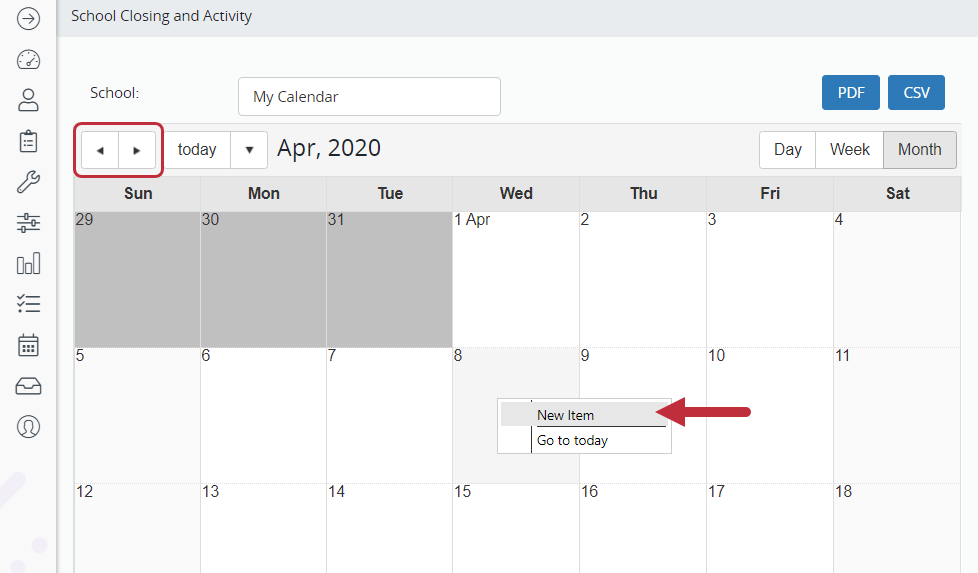
- Click Month to change the view of the calendar from a week view to a month view, if needed.
- Adjust the month view by using the arrows on the upper left to move forward or backward.
- Click on the date school is closed.
- Choose New Item.
- Complete all required fields in the New Item box.
- For consecutive days off, use the first day off as the start date and the last day off as the end date.
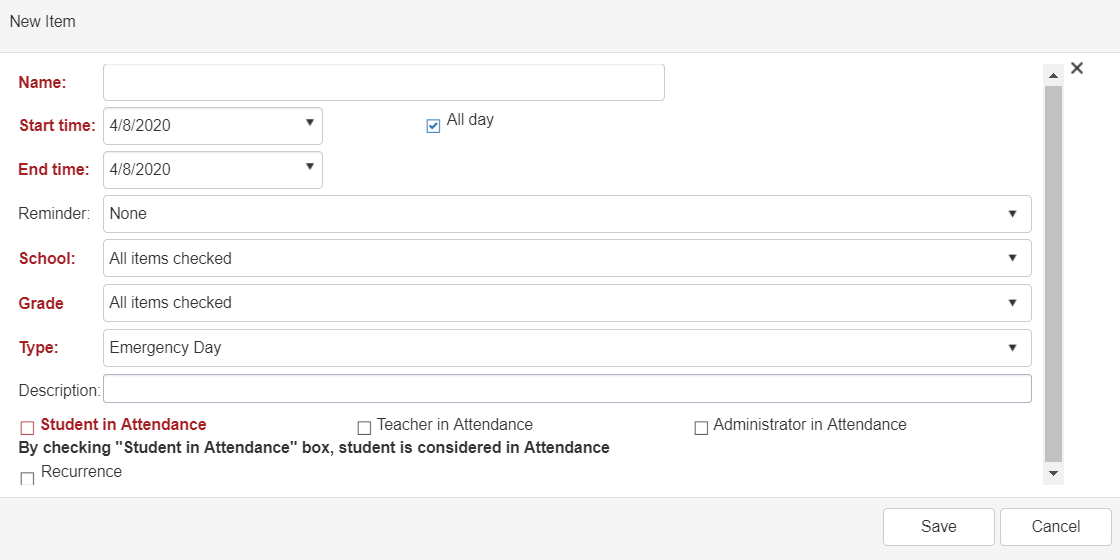
Name: The name of the day off, for example, “Thanksgiving” or “President’s Day.” Start/End Time and All Day: The date or dates school is closed. Check All Day if the day off is the full school day. Reminder: A pop-up reminder about the day(s) off. School and Grade: The schools and grades associated with this day off. Type: Identify the type of day off (emergency day, holiday, etc.). Description: Optional Recurrence: Select this option to open parameters to set this day(s) off to recur. An example of recurrence would be a professional development day that occurs on the first Tuesday of every month. - Check the appropriate boxes to indicate who will be in attendance. Leave all the checkboxes unchecked if no one will be in attendance.
- Click Save on the bottom right. The date(s) appear on the district calendar.
- Repeat the process to add additional dates.