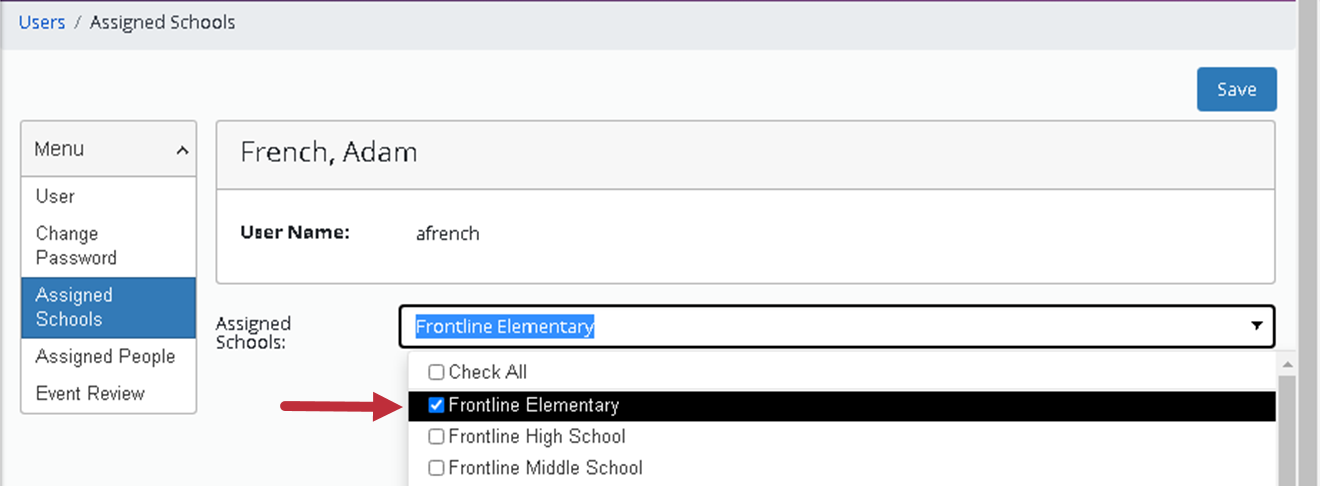
During implementation, your EHR user accounts were created and assigned to schools and user roles. Review assigned roles and school(s) to ensure appropriate access in EHR.
View Users
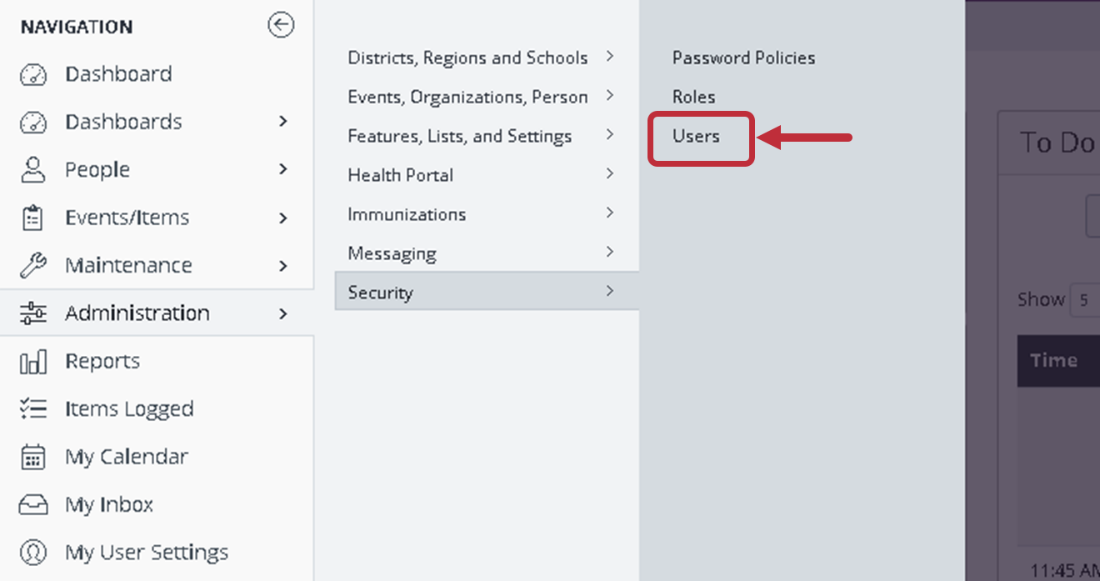
- Click Administration in the Navigation Menu, click Security, and click Users.
- In the Role field, select “All” or the role that you want to create a list for.
To create a list, click Search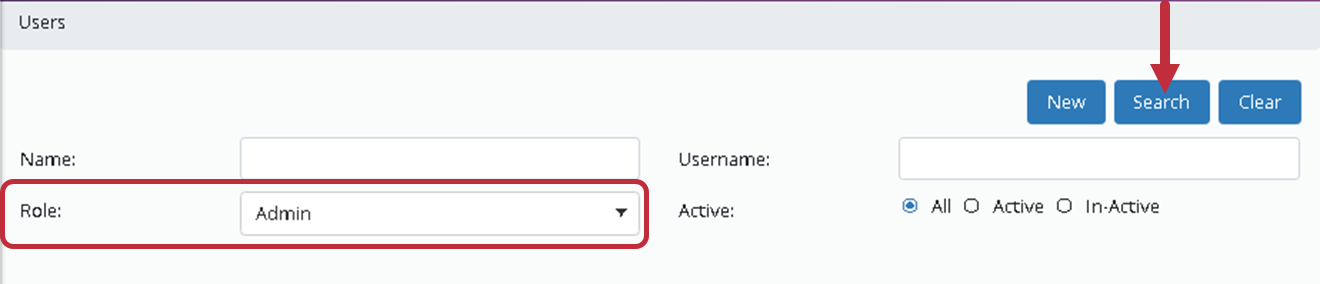
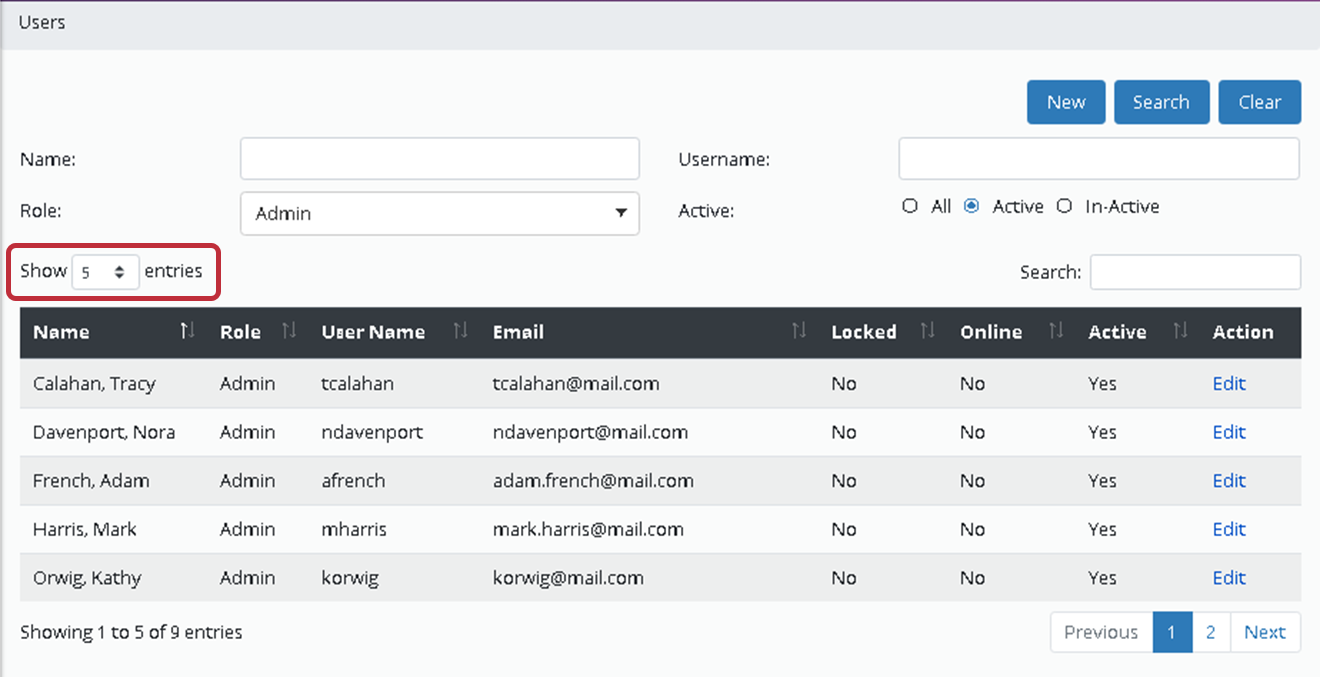
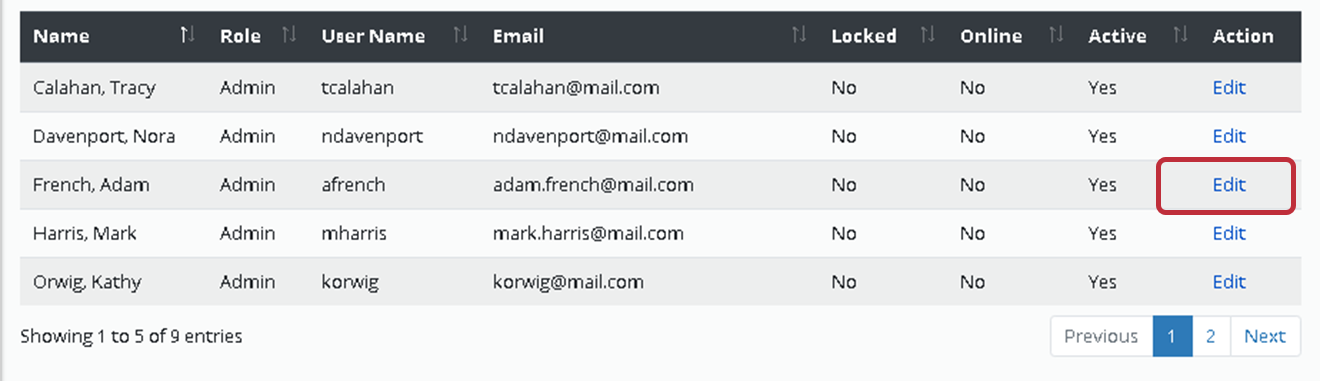
Review User Assigned Role
- Use “Show Entries” to expand the list view.
Review User Assigned School
- Select Edit next to the User to open the User Profile
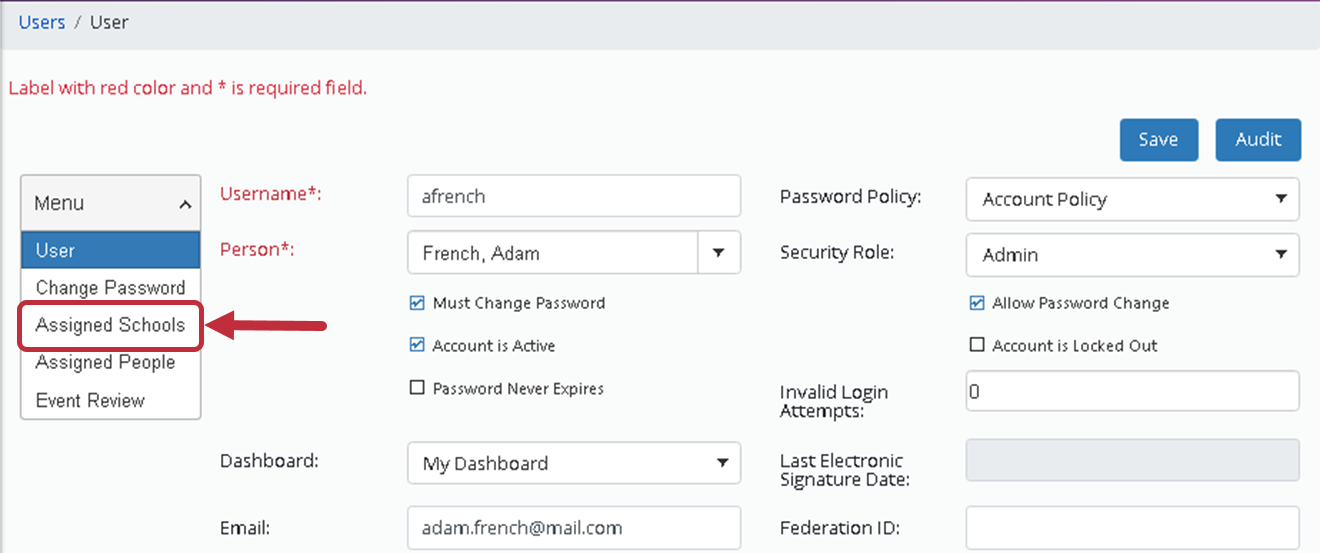
- In the User profile, select Assigned Schools.
- Review the Assigned School field.
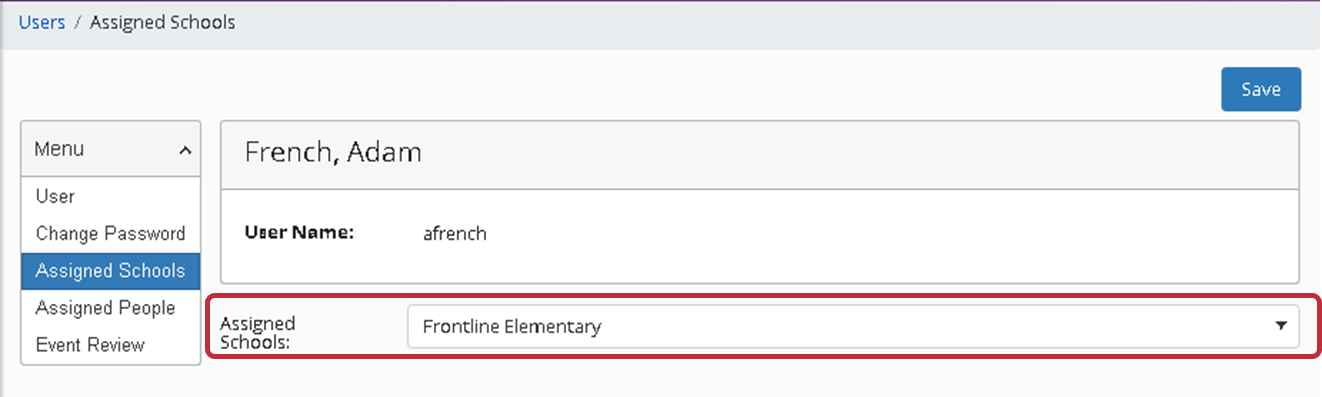
- To add or change assigned schools, use the dropdown to select schools.
Save your changes