- Click Administration in the Navigation Menu, click Features, Lists, and Settings, then click Static/Text Drop-down Lists.
- Lists are organized by category (content). Click the Category dropdown to select the content area of School Health Management.
- Active list items are shown by default. To look for inactive list items, change the Status field to inactive.
- There are multiple lists within each category. Select the List Name to load the specific list items.
- An [S] at the end of the list name indicates the list is a Static List.
- A [T] at the end of the list name indicates the list is a Text List.
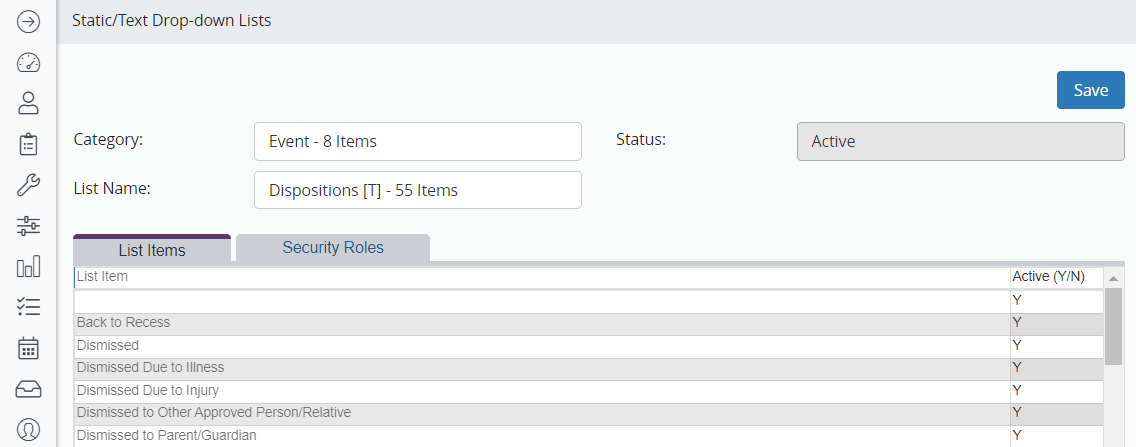
- To deactivate a list item, use your keyboard to change the “Y” to “N” in the Active column.
- To activate a list item, use your keyboard to change the “N” to “Y” in the Active column.
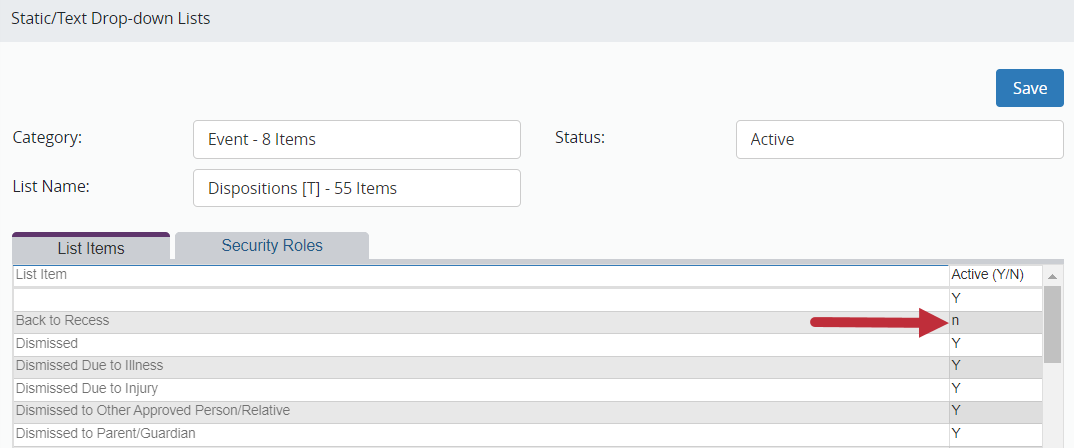
- Make any adjustments to the displayed list items. You must click Save at the top of the screen before adjusting which list items are displayed.
Commonly Adjusted Lists
The following lists are some of the most commonly used fields:
| List Name | Category |
| Results / Outcomes | Exam |
| Actions | Exam |
| Dispositions | Exam |
| Referred By | Exam |
| Exam Location | Exam |
| System Group / Condition | System Group/Condition |
| Treatments / Interventions | Exam Office Visit |
| Medical Alert | Student/Person |